What Is a Local AI Model? A Complete Beginner's Guide to Running AI on Your Own Computer.
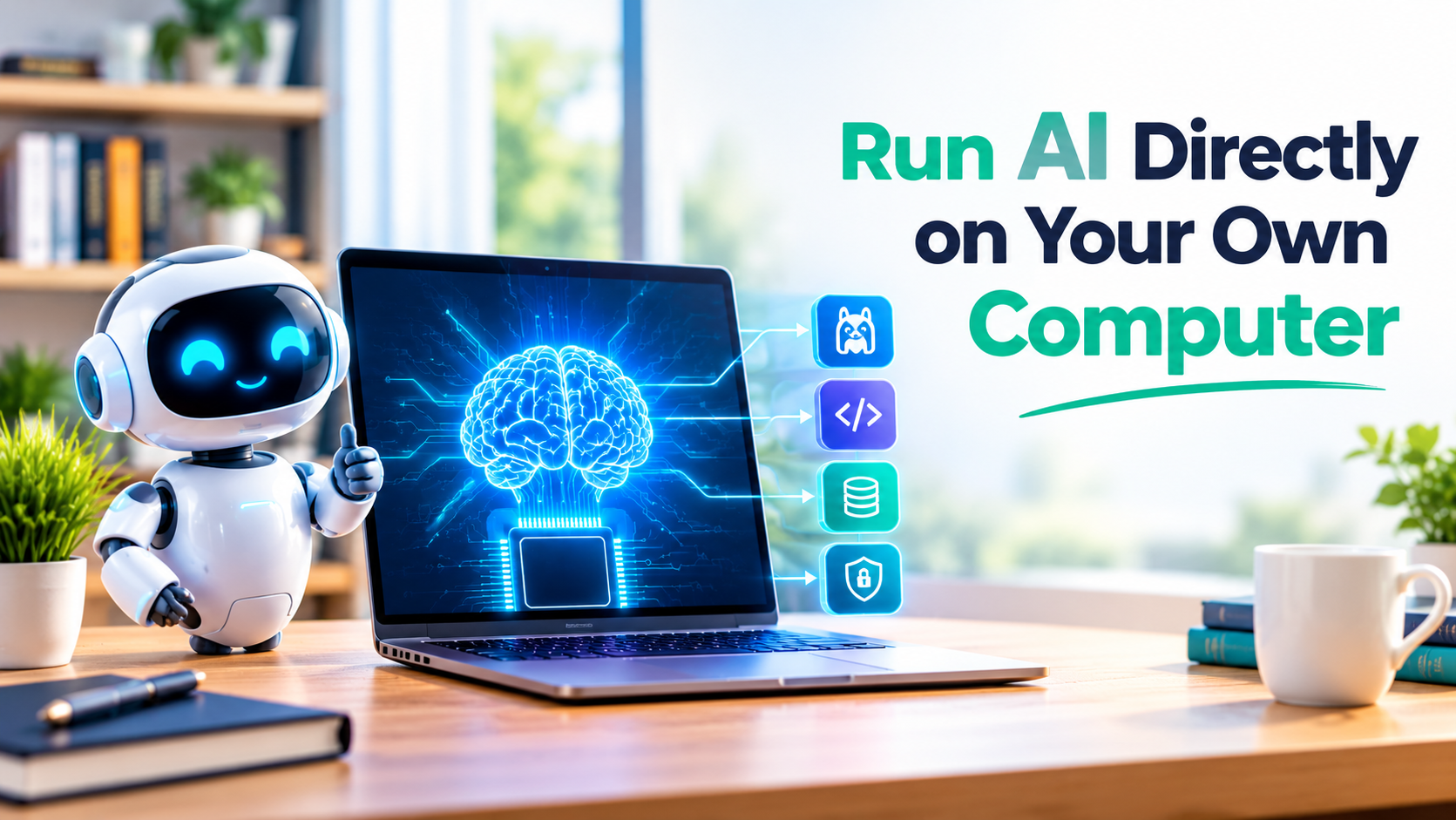
Imagine using an AI chatbot without an internet connection, without sending your data to an external AI provider, and without paying for every API request.
Sounds interesting, right?
This is exactly what Local AI makes possible.
Artificial Intelligence is rapidly changing how we develop software, automate business processes, and interact with technology. Most people use cloud-based AI services such as ChatGPT, Gemini, and Claude. However, another approach is gaining popularity among developers: running AI models locally on your own computer.
With tools like Ollama and LM Studio, developers can download, install, and run language models directly on their machines.
You can even integrate these models into applications built with ASP.NET Core Web API, React, Python, or other programming technologies.
In this guide, you will learn:
- What a local AI model is.
- How local AI works.
- Local AI vs Cloud AI.
- Popular local AI tools and models.
- How to run an AI model using Ollama.
- How to integrate local AI with ASP.NET Core Web API.
- Hardware requirements.
- Real-world applications and project ideas.
Let's get started!
1. What Is a Local AI Model?
A Local AI Model is an artificial intelligence model that runs on your own computer, laptop, or private server instead of relying on a remote cloud-based AI service for inference.
In simple terms, you download an AI model and execute it locally using compatible software.
For example, when you ask ChatGPT a question, your request is generally processed by remote infrastructure.
But when you install Ollama and download a model such as Llama, you can ask questions directly through a locally running model.
Your computer performs the AI inference instead of sending the prompt to an external model provider.
Simple Example
Suppose you want to build an AI chatbot that answers C# programming questions.
With cloud AI:
- Your application sends a prompt to an external AI API.
- The provider processes your request.
- The AI response is returned to your application.
With local AI:
- You install a local AI runtime.
- You download a compatible language model.
- Your application sends a prompt to the local model.
- The model generates a response on your computer.
The biggest difference is where the AI model performs its computation.
2. How Does Local AI Work?
Local AI typically uses a Large Language Model (LLM) that has been trained on large amounts of text and other data.
After training, the model can be downloaded and executed using an inference runtime.
Here is the basic workflow:
- Select an AI model.
- Download the model files.
- Install a local AI runtime.
- Load the model into system memory or GPU memory.
- Send prompts to the model.
- Receive generated responses.
For example, Ollama manages model downloads and execution, while your computer handles the inference workload.
Local AI Architecture
A typical local AI application looks like this:
User ? Frontend Application ? Backend API ? Local AI Runtime ? Language Model ? AI Response
For example:
- Frontend: React.js
- Backend: ASP.NET Core Web API
- AI Runtime: Ollama
- Model: Llama
- Database: SQL Server
This architecture allows developers to build AI-powered applications without depending on an external LLM API for every request.
3. When to use Local AI & Cloud AI ?
Choose Local AI when:
- You want to experiment with AI models.
- You want to build offline-capable applications.
- You need more control over where inference data is processed.
- You want to avoid external per-request API charges.
- You are developing private internal AI tools.
Choose Cloud AI when:
- You need access to powerful hosted model
- You don't have suitable local hardware.
- You need to scale applications quickly.
- You want managed infrastructure.
- You need advanced capabilities that aren't available in your local model.
Important: Local AI is not automatically more accurate, faster, or cheaper. The right choice depends on the model, hardware, usage, and application requirements.
4. Popular Tools to Run Local AI Models
Several tools make it easier to download and run AI models locally.
1. Ollama
Ollama is one of the most popular tools for running language models locally.
It provides a simple command-line interface and an HTTP API that developers can integrate into their applications.
Features:
- Download and manage models.
- Run models locally.
- Interact with models through a terminal.
- Access models through a local HTTP API.
- Integrate with applications written in different programming languages.
Official website: https://ollama.com/
2. LM Studio
LM Studio provides a desktop interface for discovering, downloading, and running compatible local language models.
Features:
- Graphical user interface.
- Model discovery and downloads.
- Local model conversations.
- Local API server for application integration.
Official website: https://lmstudio.ai/
3. llama.cpp
llama.cpp is an open-source inference engine designed to run supported language models efficiently across different hardware configurations.
It is particularly useful for developers interested in understanding and optimizing local model execution.
GitHub: https://github.com/ggml-org/llama.cpp
4. Hugging Face
Hugging Face provides a large ecosystem of downloadable AI models, datasets, and development libraries.
Developers can explore different models and use compatible libraries to run them locally.
Website: https://huggingface.co/
5. Popular AI Models You Can Run Locally
A local AI runtime is not the AI model itself. It is the software that helps you download and execute a model.
Here are some model families worth exploring.
Llama
Developed by Meta, Llama is a family of language models designed for a variety of AI applications.
Website: https://www.llama.com/
Microsoft Phi
Phi is Microsoft's family of small language models designed for efficient AI workloads.
These models are particularly interesting for developers exploring smaller AI deployments.
Website: https://azure.microsoft.com/en-us/products/phi
Gemma
Gemma is Google's family of open-weight models designed for developers and researchers.
Website: https://ai.google.dev/gemma
Qwen
Qwen is a family of AI models developed by Alibaba Cloud. It includes models for language, coding, and multimodal tasks.
Website: https://qwen.ai/
DeepSeek
DeepSeek offers models focused on reasoning, coding, and general-purpose language tasks. Compatible downloadable versions can be run locally.
Website: https://www.deepseek.com/
Note: Not every model variant is suitable for every computer. Check model licensing, hardware requirements, context length, and supported runtimes before downloading.
6. How to Install and Run Local AI Using Ollama
Now let's build something practical.
We will use Ollama to run a language model on a local machine.
Step 1: Install Ollama
Visit the official website:
Download the installer for your operating system.
Ollama supports Windows, macOS, and Linux.
Follow the installation instructions.
Step 2: Download an AI Model
Open your terminal or command prompt.
For example, download Llama 3.2:
ollama pull llama3.2
This downloads the selected model to your computer.
The actual download size depends on the model variant.
Step 3: Run the Model
Execute:
ollama run llama3.2
Now you can interact with your local AI model.
For example:
>>> Explain dependency injection in C#

Dependency Injection is a design pattern
that allows a class to receive its dependencies
from an external source rather than creating
them internally.
You are now interacting with a locally running AI model.
Step 4: Ask Programming Questions
Try these prompts:
Explain C# HashSet with examples.
What is the difference between
IEnumerable and IQueryable?
Generate an ASP.NET Core Web API
CRUD application structure.
Your local model will generate responses based on its capabilities.
Step 5: Access the Ollama API
One of the most interesting features for developers is that Ollama provides a local HTTP API.
Its default address is:
http://localhost:11434
You can send HTTP requests from your own applications.
For example:
POST http://localhost:11434/api/generate
Content-Type: application/json
Request body:
{
  "model": "llama3.2",
  "prompt": "Explain HashSet in C#",
  "stream": false
}
The API returns a generated response.
Now you can integrate local AI into your own software projects.
7. Integrating Local AI with ASP.NET Core Web API
This is where local AI becomes especially interesting for .NET developers.
Imagine building a chatbot using:
- ASP.NET Core Web API
- React.js
- Ollama
- Llama model
Your React application sends a question to the ASP.NET Core API, which communicates with Ollama and returns the generated answer.
Architecture
React Application
       |
       v
ASP.NET Core Web API
       |
       v
HttpClient
       |
       v
Ollama Local API
       |
       v
Llama Language Model
       |
       v
Generated AI Response
       |
       v
React Application
Step 1: Create an ASP.NET Core Web API
Create a new project:
dotnet new webapi -n LocalAIApplication
Step 2: Create an AI Request DTO
public class AIRequestDto
{
    public string Prompt { get; set; }
}
Step 3: Create an AI Controller
using Microsoft.AspNetCore.Mvc;
using System.Net.Http.Json;
using System.Text.Json;

[ApiController]
[Route("api/[controller]")]
public class AIController : ControllerBase
{
    private readonly HttpClient _httpClient;

    public AIController(HttpClient httpClient)
    {
        _httpClient = httpClient;
    }

    [HttpPost("ask")]
    public async Task<IActionResult> Ask(
        AIRequestDto request)
    {
        if (string.IsNullOrWhiteSpace(request.Prompt))
        {
            return BadRequest("Prompt is required.");
        }

        var response = await _httpClient.PostAsJsonAsync(
            "http://localhost:11434/api/generate",
            new
            {
                model = "llama3.2",
                prompt = request.Prompt,
                stream = false
            });

        if (!response.IsSuccessStatusCode)
        {
            return StatusCode(
                StatusCodes.Status502BadGateway,
                "Local AI service is unavailable.");
        }

        var result = await response.Content
            .ReadFromJsonAsync<JsonElement>();

        return Ok(new
        {
            Answer = result.GetProperty("response")
                           .GetString()
        });
    }
}
Step 4: Register HttpClient
In Program.cs:
builder.Services.AddHttpClient<AIController>();
Step 5: Test Your API
Send a POST request:
POST /api/AI/ask
Content-Type: application/json
Request:
{
  "prompt": "What is dependency injection in C#?"
}
Your ASP.NET Core API communicates with Ollama and returns the generated response.
Production note: This is a minimal learning example. For production, move the AI integration into a dedicated service, configure the Ollama endpoint through application settings, add timeouts and cancellation tokens, validate request size, and secure access to the API. Do not expose the Ollama service directly to untrusted networks.
8. Hardware Requirements for Running Local AI
One of the most common questions is:
Can I run AI models on my normal laptop?
Yes! You don't necessarily need an expensive GPU to experiment with local AI.
However, hardware requirements depend on model size, quantization, context length, and inference settings.
9. Real-World Applications of Local AI
Local AI is not just an experiment. It can be useful in real software development and business applications.
1. AI Coding Assistant
Build a coding assistant that helps developers:
- Understand source code.
- Generate code snippets.
- Explain programming concepts.
- Suggest bug fixes.
- Generate unit tests.
2. Private Company Chatbot
Create an internal chatbot that answers questions about company policies, documents, and procedures.
3. AI Document Assistant
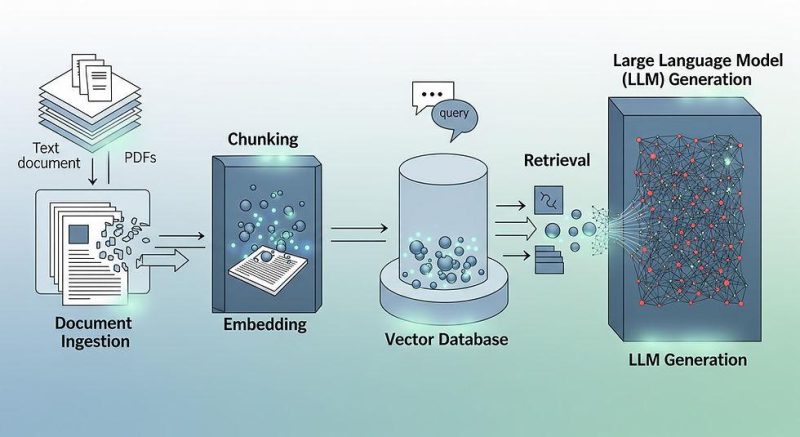
Allow users to upload PDF documents and ask questions about their content.
This can be implemented using Retrieval-Augmented Generation (RAG).
4. Offline AI Assistant
Develop applications that continue to provide supported AI features without an active internet connection.
5. AI-Powered SQL Assistant
Build an application where users ask questions in natural language and receive SQL query suggestions.
For example:
Show all employees who joined
after January 2025.
The application can generate a corresponding SQL query.
Always validate generated queries and use read-only database permissions where appropriate. Never execute arbitrary AI-generated SQL without security controls.